
Member profile fields
Ask members for extras on Profile, and mark the main phone or any extra required on signup and Profile.
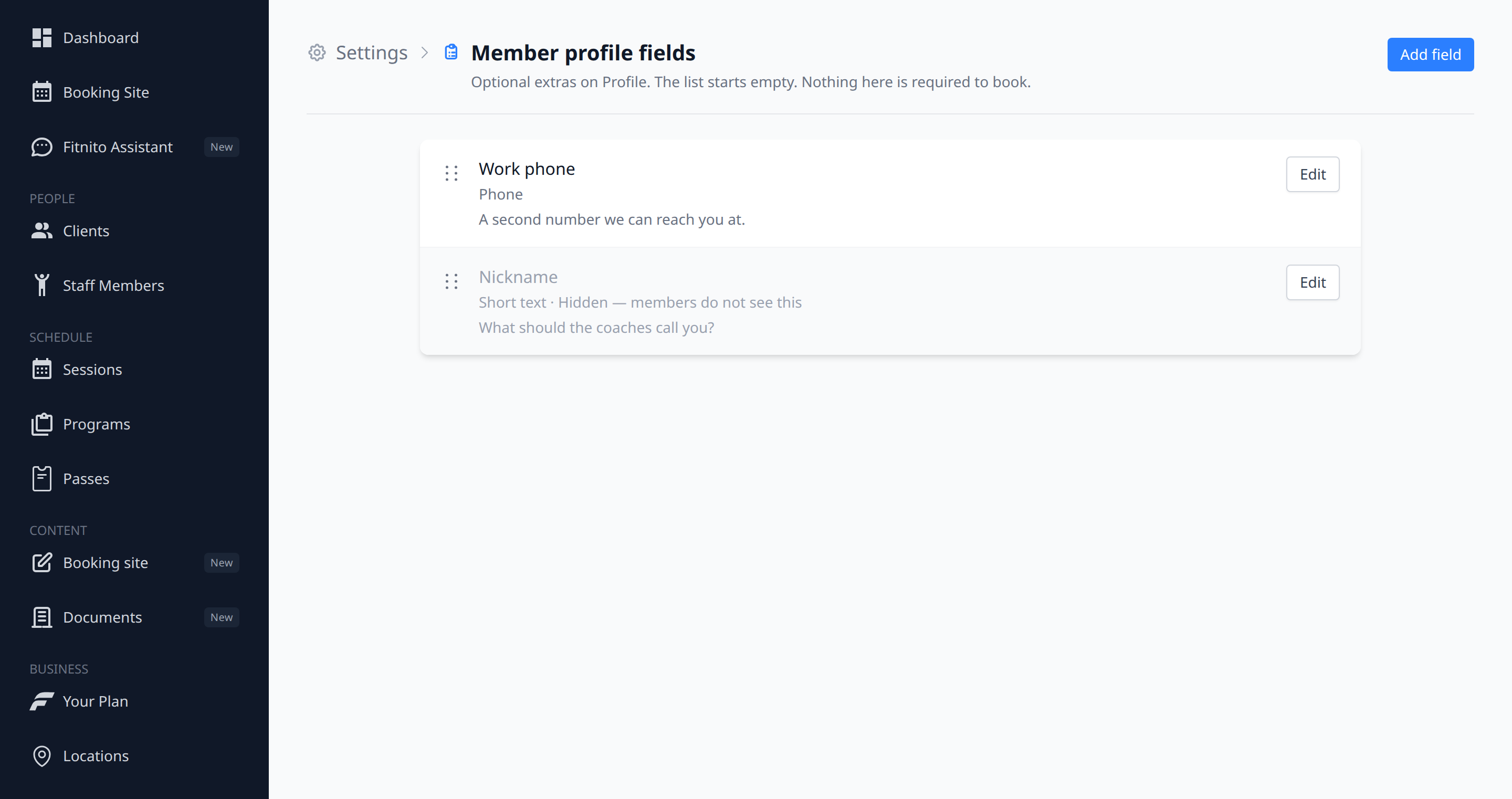
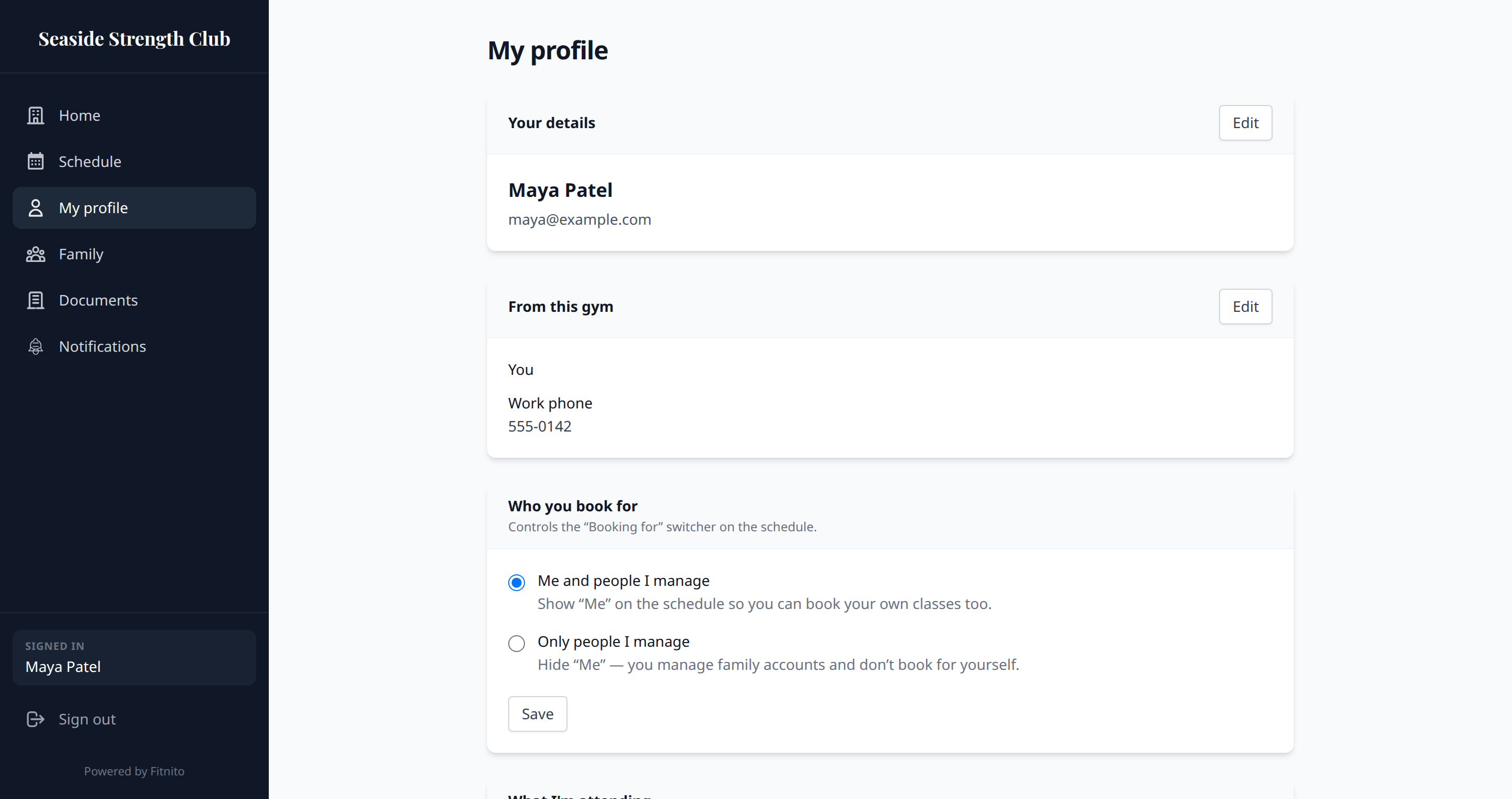
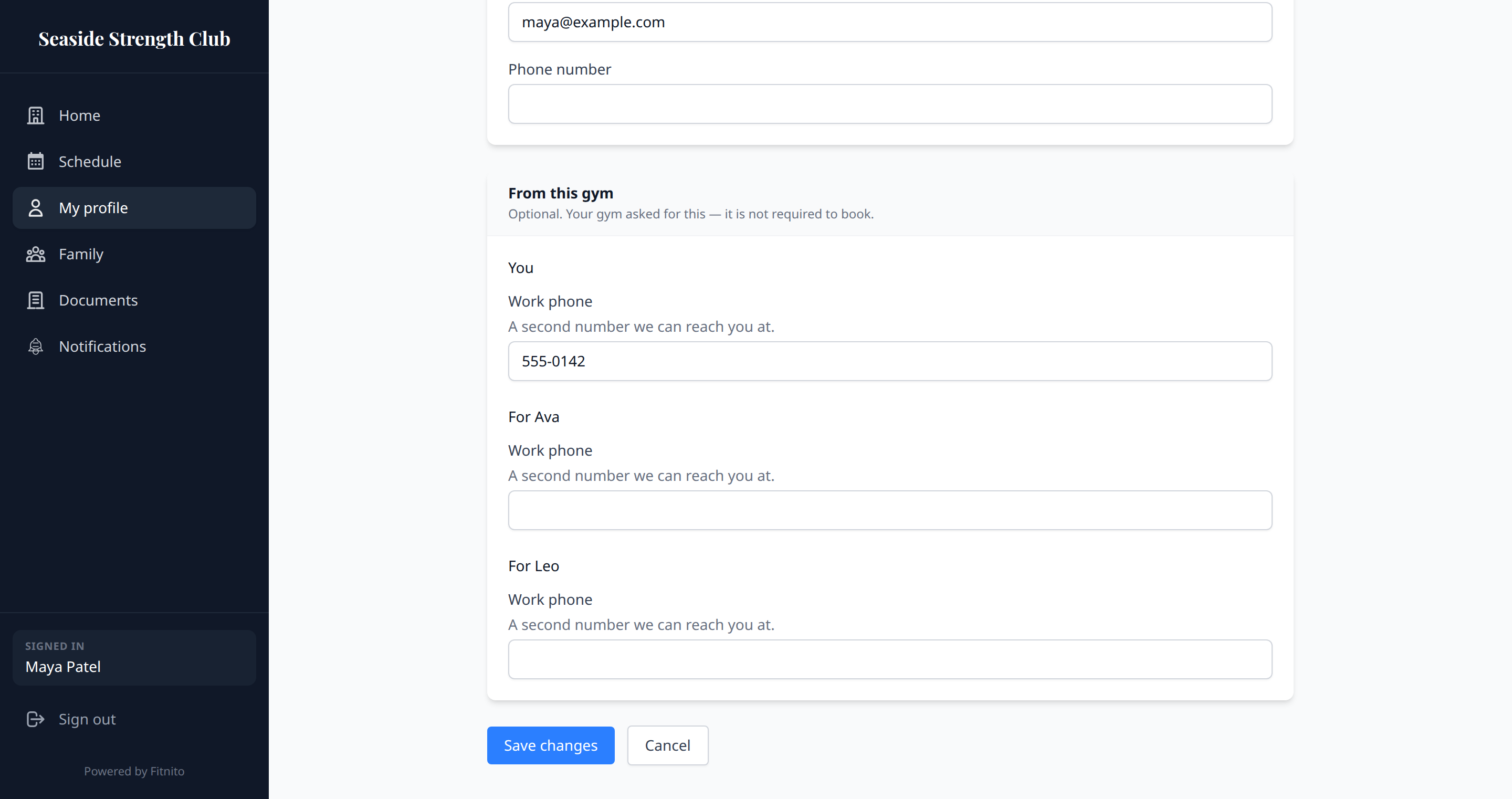
Content → Forms and Fields → Profile is the main phone plus optional extras on a member’s Profile. Premium — paid plans and the trial. Extras start empty. Add only what this gym needs.
It is not an intake survey or a waiver. Those stay in the Documents library. Nothing here is required to book.
Built-in phone
The main phone is already on the member. Required on that built-in row marks the same phone they fill — it does not add another phone field. It is optional until you turn it on. Members fill it on Create account and Profile. Staff adding someone at the desk can still skip it.
What you can ask
Short text, long text, a date, an extra phone, or yes/no. A custom phone is for extras — work phone, second guardian — not a copy of the main number.
How to add one
- Open Content → Forms and Fields (paid plan or trial), then Profile.
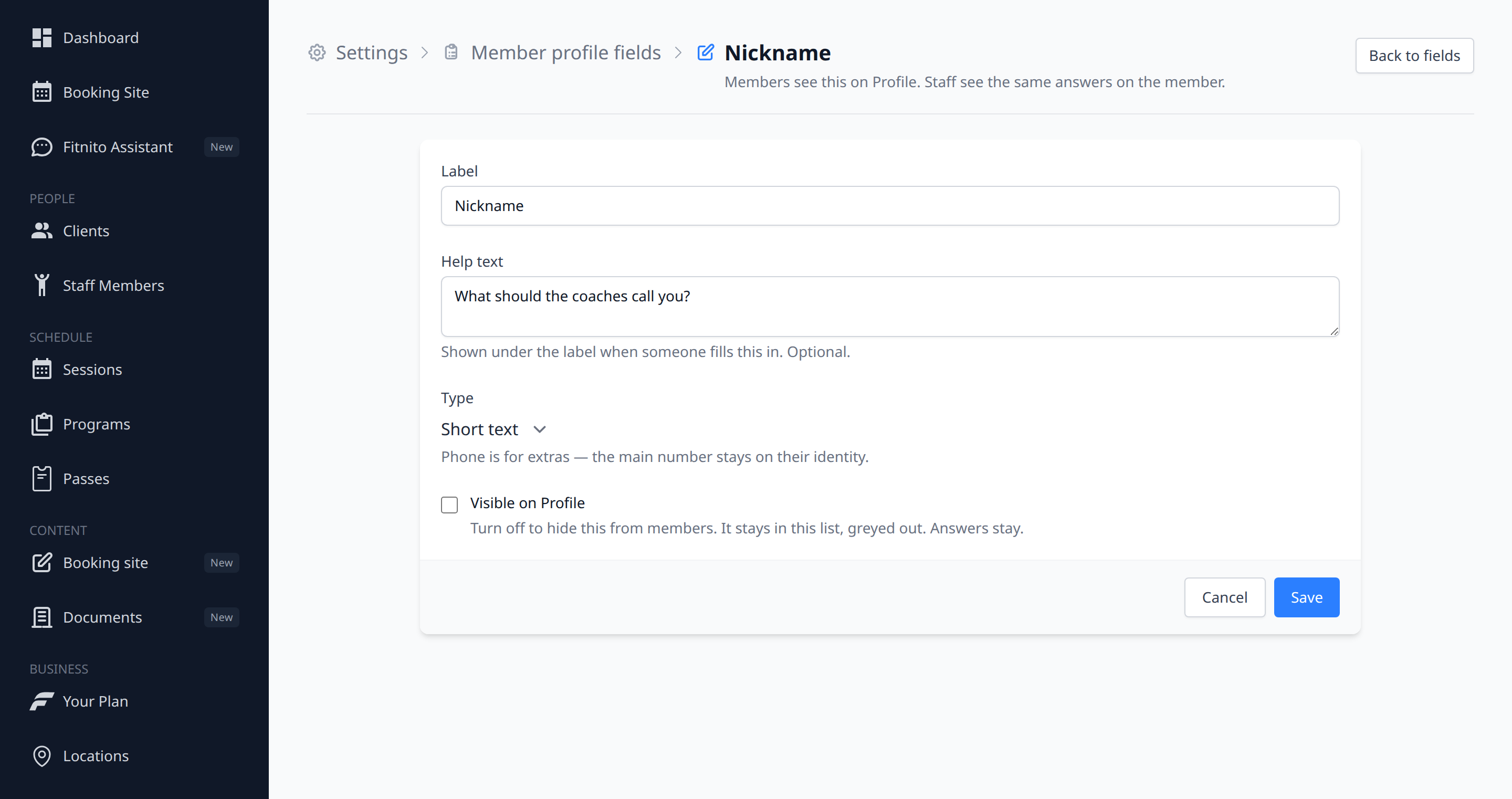
- Add field. Write a label and, if you want, a short help line.
- Pick a type. Turn on Required if they must fill it on signup and Profile. Save.
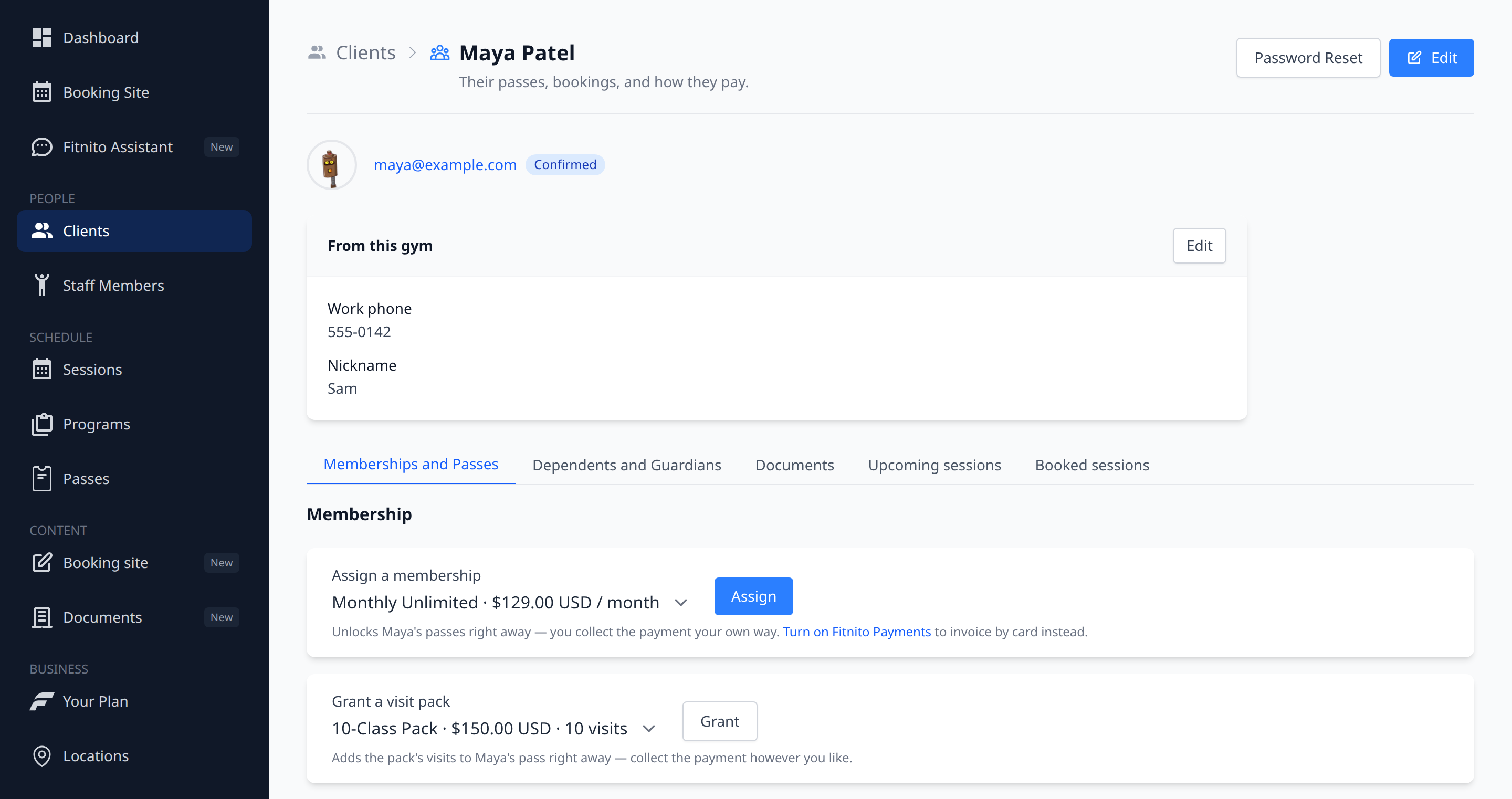
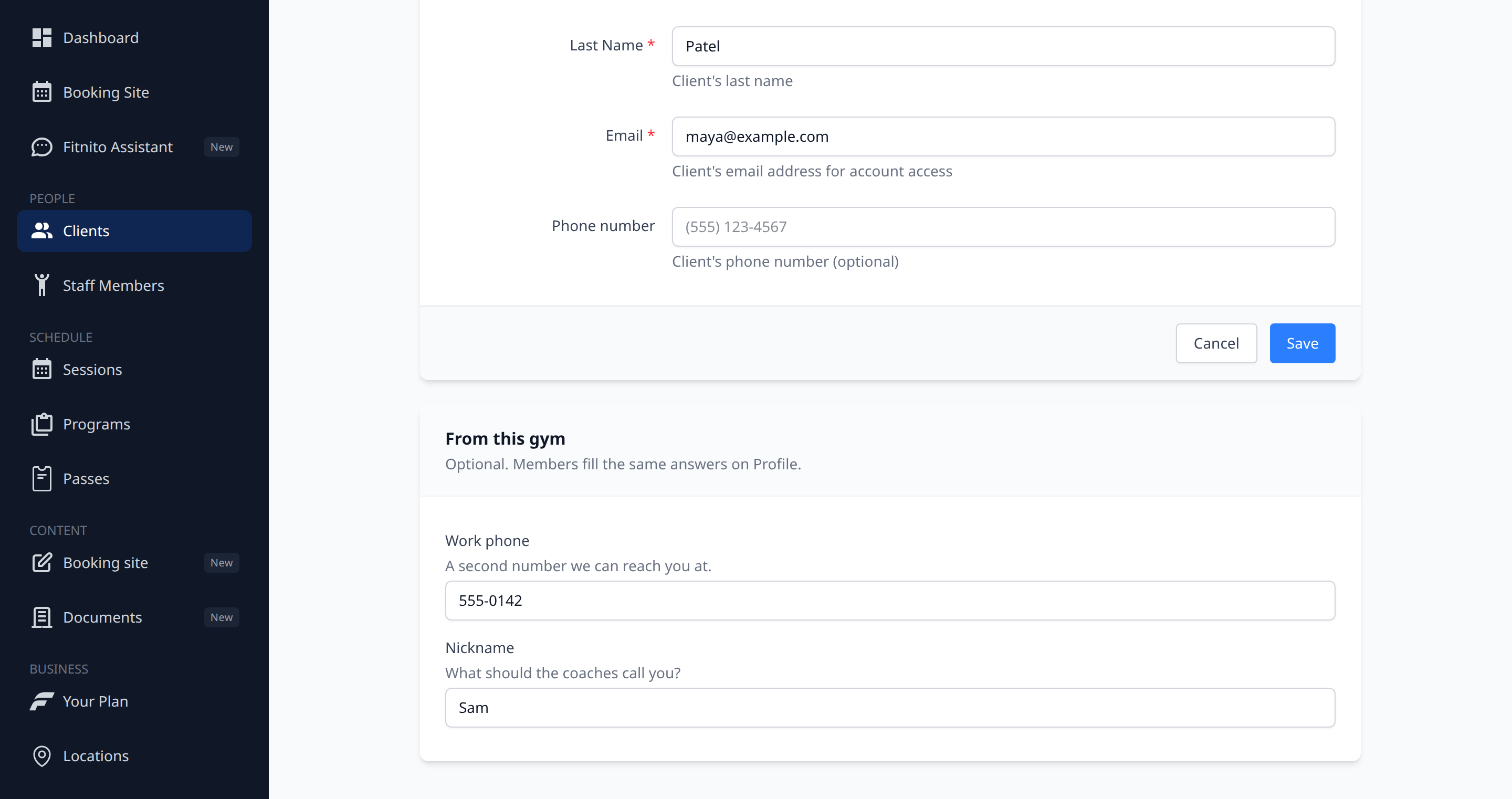
Members see active fields on Create account and Profile, in the same card as name, email, and phone. The summary is just the label and what they answered — blank extras stay off. Edit still shows the help line under each field. Parents edit a kid from Family, not from their own Profile.
Staff open the member and use the Profile tab (after Booked sessions). The member identity (name, email, main phone) stays at the top of the page. Answers live on that tab. Edit is the same form as name, email, and phone.
Hide without deleting
Open Edit on an extra and turn off Visible on Profile. The field stays in this list, greyed out. Answers stay. Drag the handle to change the extras order. The main phone stays on the member — you cannot hide it.
Do not add a Birthday or emergency-contact field unless you actually want that extra — Fitnito does not invent those for you.