
Your profile
Fix your name, email, and phone, fill extras the gym asked for, and review what you are attending.
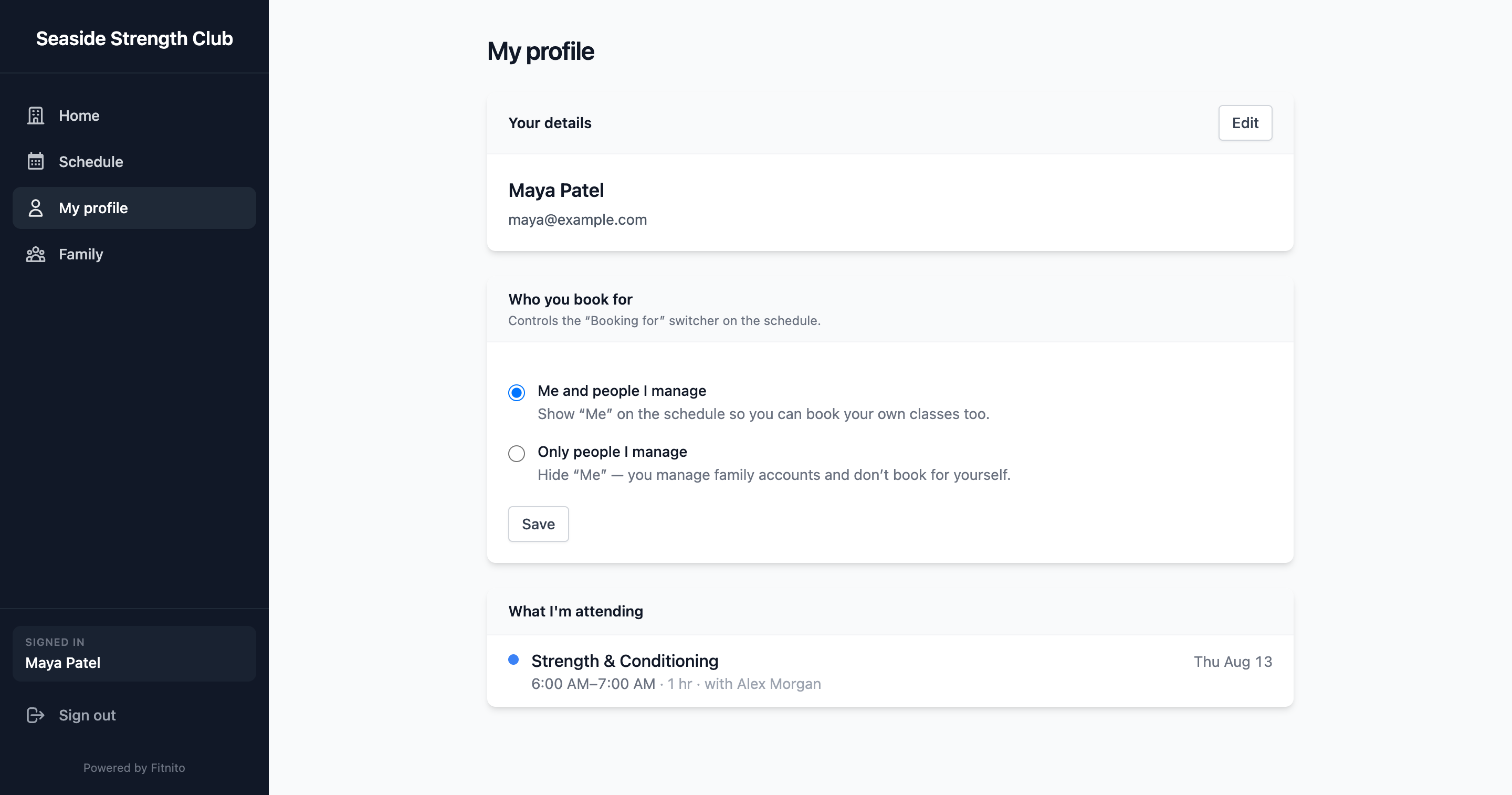
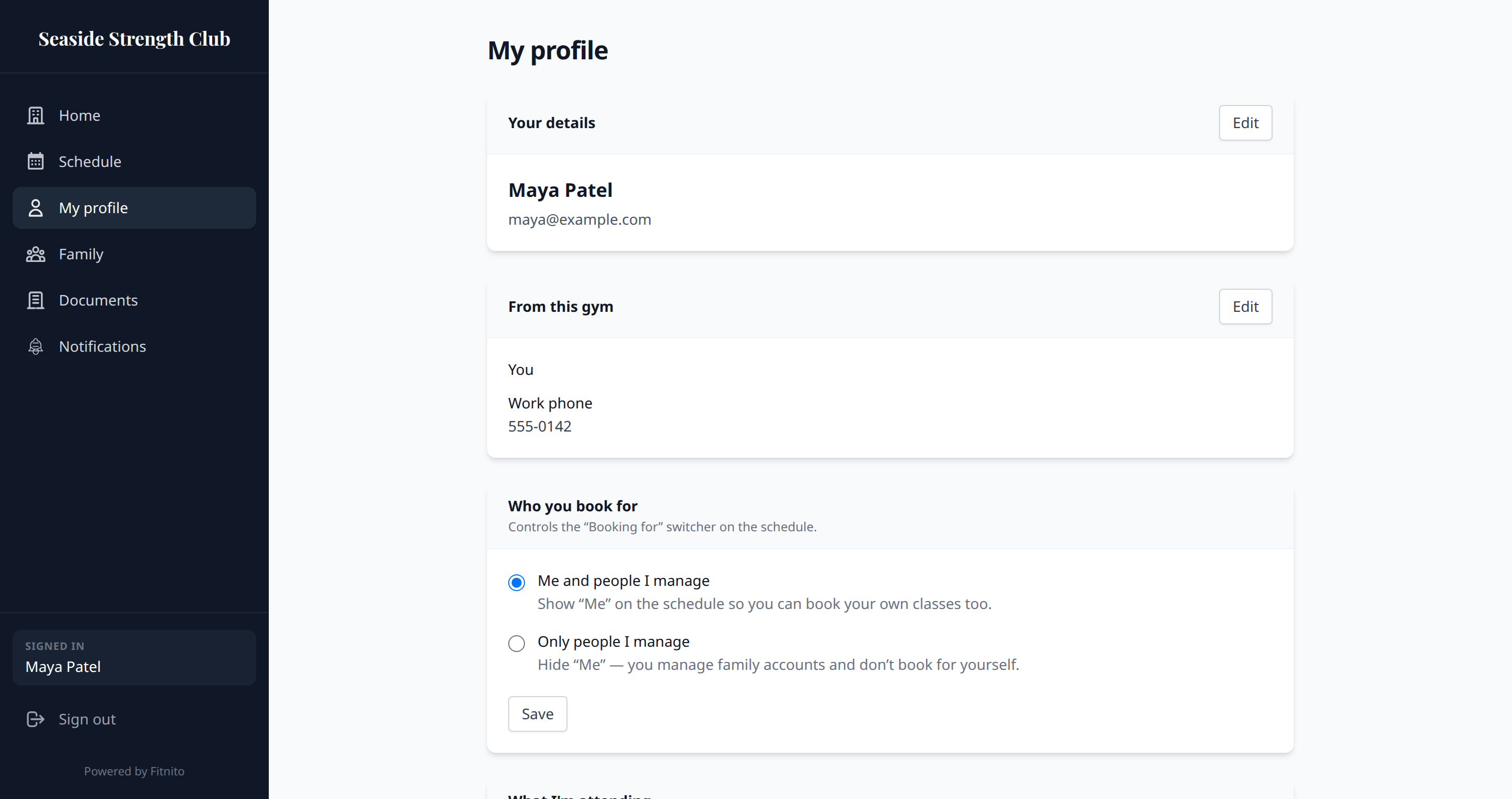
Profile is you: name, email, phone, extras the gym asked for, who you book for, and what you are attending. Kid extras live on Family.
Edit
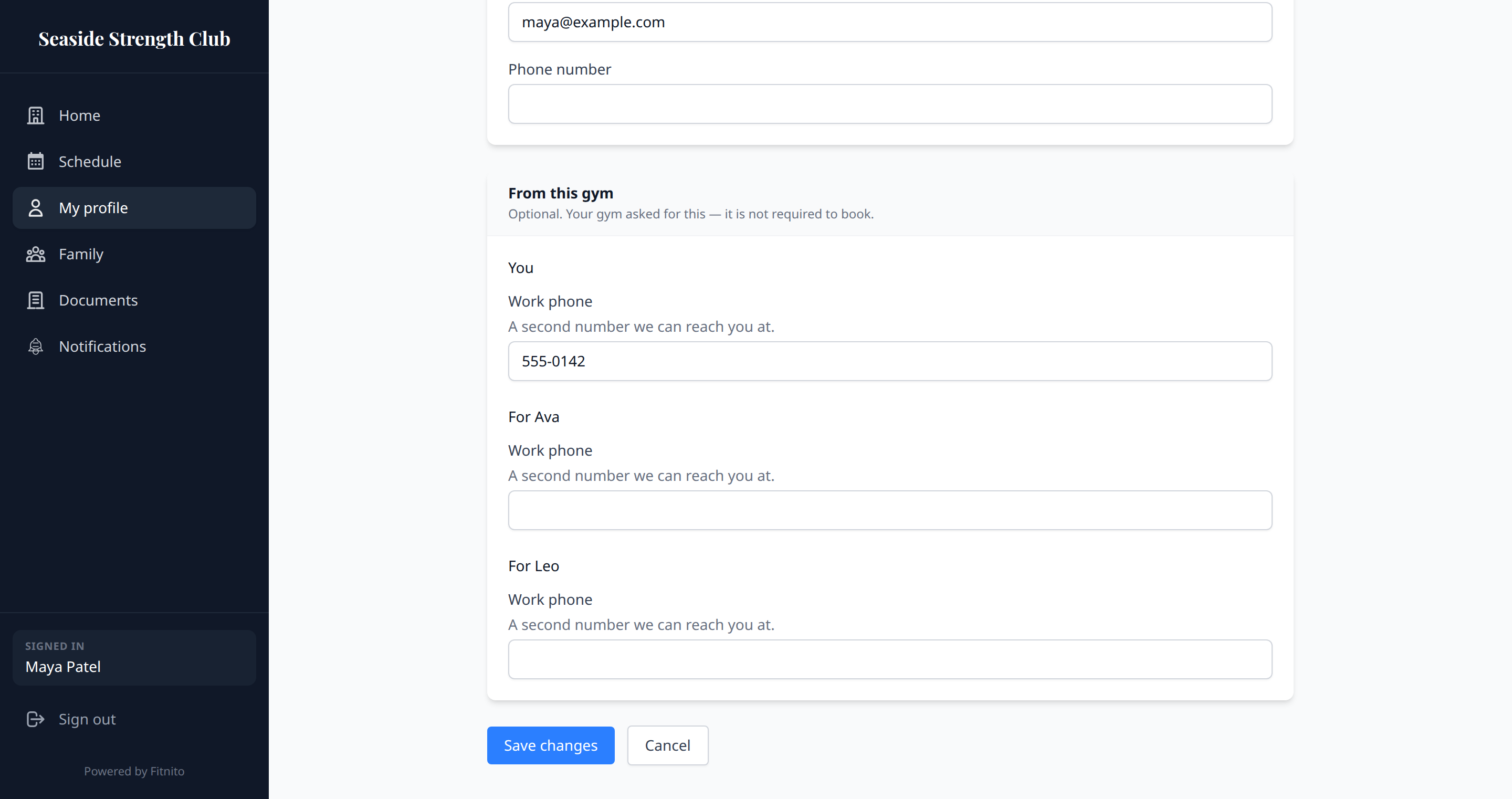
Edit to change your name, email, or phone. Use an email you actually read — password resets and family approval go there. If the gym marked phone or an extra required, you need those to save.
Extras the gym asked for
Some gyms ask for extras — a second phone, a nickname, a date. Those sit in the same card as your name. The summary shows only what you answered. Edit is where you fill them in, with a short help line under each field. A required extra must be filled to save. Nothing here is required to book. If the gym has not asked for anything, you just see name, email, and phone.
If you manage a kid, open Family, choose that person, and use Edit profile. Their extras do not live on your Profile.
Booking preference
Some gyms let you choose whether you book for yourself, or only for people you manage. That control is on Profile when the gym allows family booking. It is the schedule switcher, not a kid’s profile.
Password
Change your password from the account/auth screens (forgot password if you cannot sign in). Profile itself is details, not the password form.