
Weekly classes
The Weekly Schedule tab, editing a series, and how generated sessions behave.
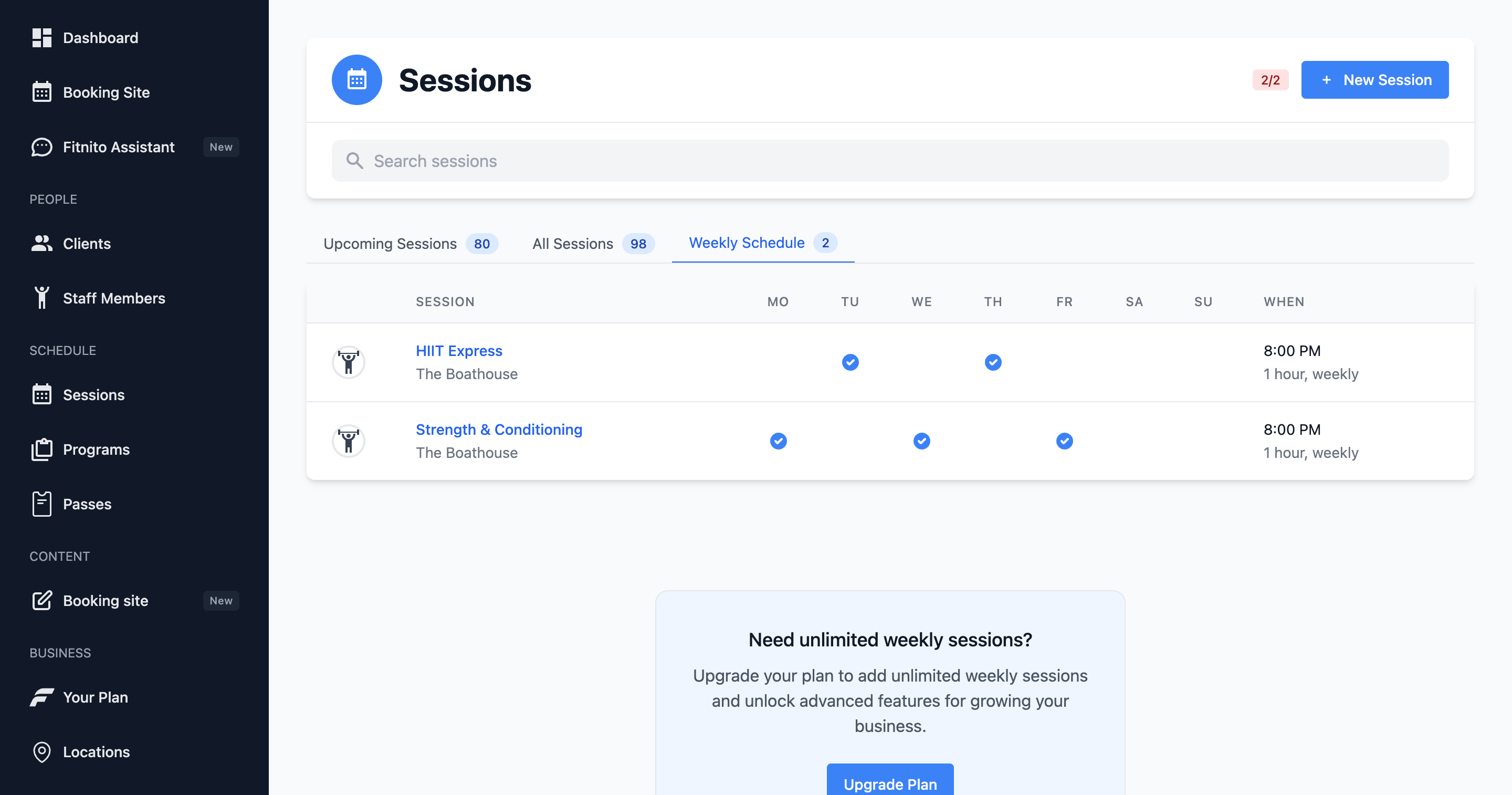
Weekly classes are the skeleton of the calendar. Members see the generated dates on your booking site (and you see them on On the Calendar). This tab is the template behind those dates.
Edit a series
Open Sessions → Weekly Schedule, then open the weekly class and click Edit. Change time, days, coach, or capacity, then save.
That save updates the weekly class and every upcoming date on the calendar, including classes already created. Past dates stay as they were.
Change one date only
Open that day’s class from On the Calendar (or Upcoming). The blue banner says changes apply to this date only. Next week stays on the weekly coach.
Delete a weekly class
On the weekly class, use Delete. Empty upcoming dates are removed. Dates that already have bookings stay on the calendar as one-off classes so those members keep their spot.
Unchecking every day on the weekly form also takes the class off future weeks; leftover empty dates are cleared when you save. Delete is the clean way to retire the series.
Season start
You can hide weekly classes from the public booking site until a date (useful for a fall season). Set First day on the weekly class. Members will not see those slots until then.
One-off vs weekly
A workshop should be a one-off session. A Tuesday 6 PM that never ends should be weekly. Mixing them on the same form keeps the calendar honest.
If two weekly classes collide at one location, Fitnito will refuse the overlap. Split rooms with a second location.