
Connect an AI agent
Book sessions, manage family, and open payment links from your AI tool. Set up an MCP connector for Fitnito at https://mcp.fitnito.com, sign in, and approve.
Book a session, manage family, and open payment links from Cursor, Grok, Claude, ChatGPT, or Muse (Facebook Muse).
Connect
- Set up an MCP connector for Fitnito in your own UI.
- Use https://mcp.fitnito.com.
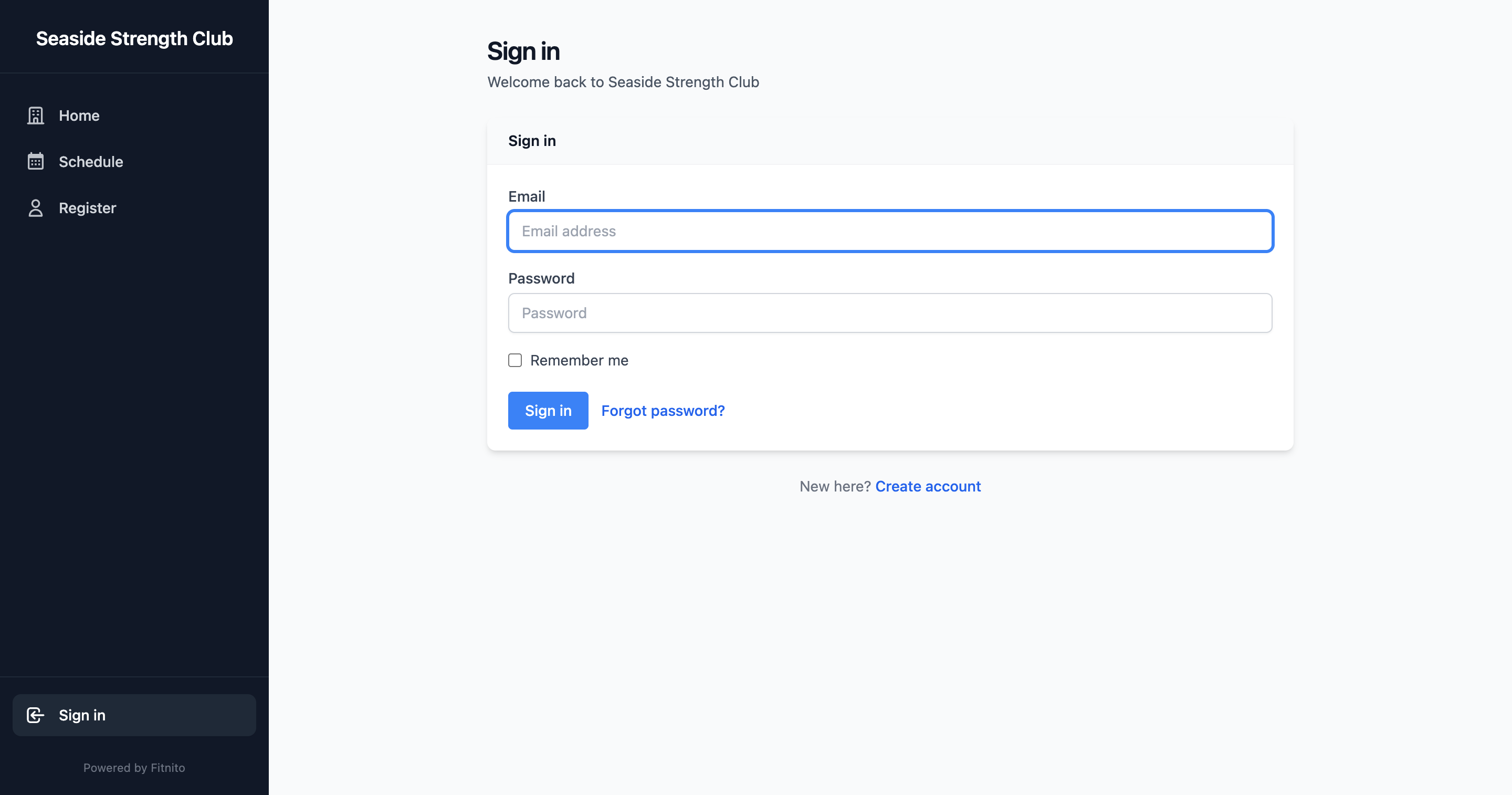
- Sign in the same way you do on your gym’s booking site: email and password, or Continue with Google. You do not need to set a password first.
- Choose which gyms this AI can use. Pick Full access or Read only, then approve. Read only can see your schedule and your passes. It cannot book, pause a membership, email, or change anything. If more than one account matches your sign-in, pick yours from the list.
- You should see You're connected. You can close this window.
If you train at two gyms, you pick which ones. To add another gym later, connect again and choose it. If the agent is not sure which person (you or a kid), it asks. Say “self” or their full name.
What you can do
- Book and drop a session. The assistant shows how many visits it will use, and the cancellation terms, before it books. A pass booking does not charge a card. If the session needs Book now, confirming holds the seat and gives you a Checkout link. You authorize the card there. The card is charged only if the seat is still yours. Dropping a session shows the same terms again, including whether the drop is late and whether the gym keeps the visit. Pass the penalty from that quote when you confirm. If the session moved into the late window after the quote and the gym keeps the visit, you get a new quote and nothing is dropped. A session that already started cannot be dropped. Outside the window, the visit comes back. The card is not refunded from the assistant.
- See family, request a link, or add a child
- See your membership and passes, and pause or ask to cancel
- Buy a membership or a visit pack. The assistant returns a Checkout link. You open it on your phone or browser and pay there. The assistant does not see your card number and does not charge the card itself
- Open a link to the payment portal, or to save a card. You open the link. The assistant does not see your card number
- Update your profile, sign documents, and set email preferences
- Search member help
To stop it, disconnect the app in the assistant you used.
Beside the chat
After you connect, the app can show your gym next to the chat.
- Open Today's sessions from the sidebar. You see today's sessions, whether you or someone you manage is booked, and how many spots are open. You do not see other members' names.
- Keep Schedule open beside the chat.
- In the composer, type @Fitnito to pick a session or someone you manage. Then ask the chat to book or drop them.
- Session alerts are the same notes as below.
Your session alerts
You can ask the assistant to tell you when you, or someone you manage, is booked, dropped, or when that session is cancelled.
- Connect with your booking-site sign-in (the steps above).
- Ask, for example: "Tell me when I or my kids get booked into a session."
- The note has the session id, your id or your kid's id, the time, and how full the session is. It does not include a name, an email, or anyone else's id.
- If a session you were in is cancelled, you get one cancellation for that session. The list of people is only you and your kids who were booked.
A coach's watch is the whole gym. Yours is not. You cannot ask it to watch another member.
To stop, ask the assistant to stop watching, or disconnect the app. A watch expires, and the assistant has to turn it on again.