
Book with your browser AI
On Chrome, your gym's booking site can offer tools to the browser's AI assistant — browse classes signed out, book or drop when you are signed in.
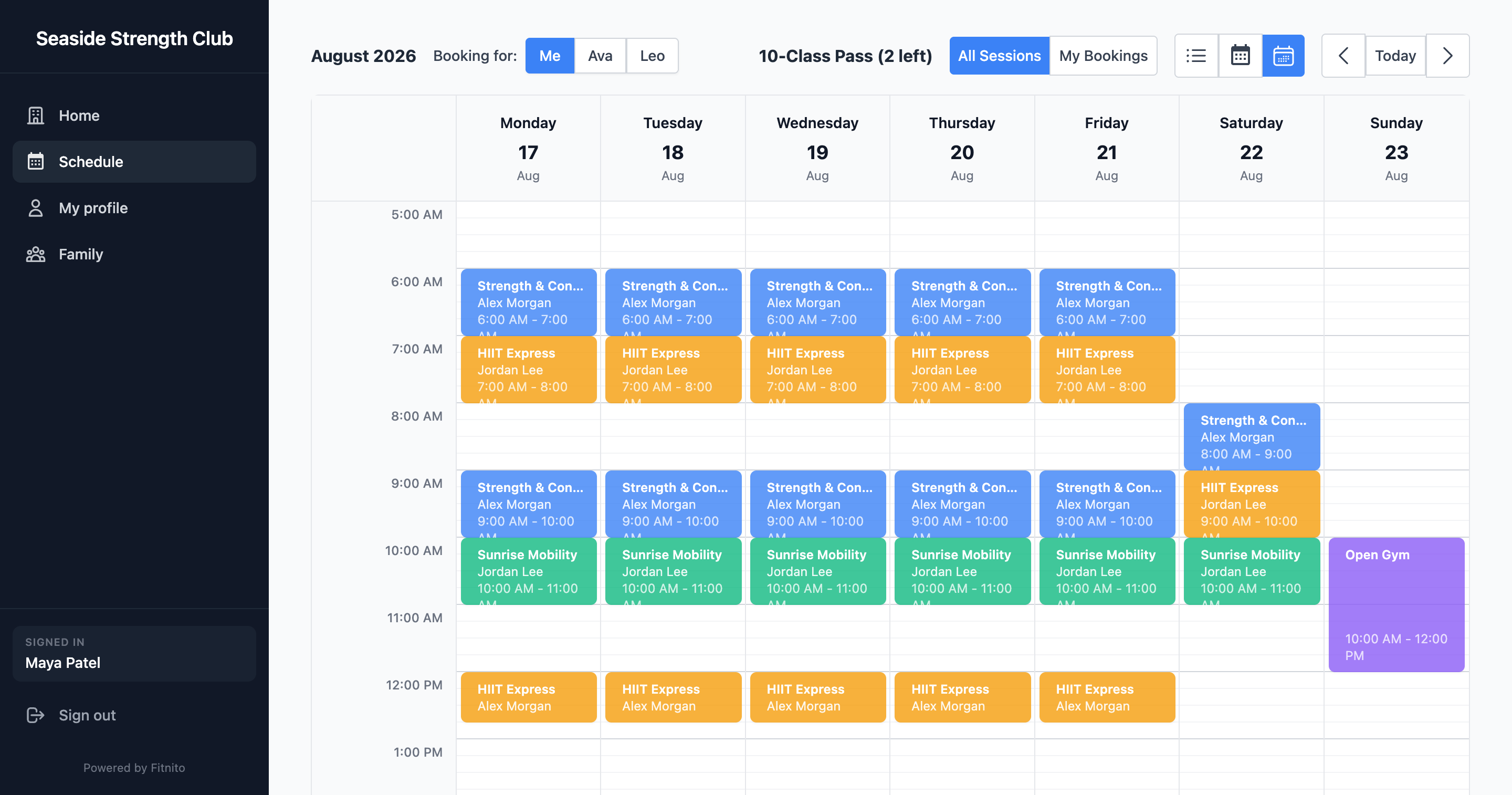
Chrome's WebMCP preview can read tools from the page you have open. On every Fitnito booking site, those tools are on by default. There is no gym setting to turn them off.
What the browser can do
Signed out
- List upcoming classes and open one class for details (coach, location, spots left, what pass types cover it, and list prices if the gym sells plans or packs on the site).
Signed in
- Everything above, plus see your upcoming bookings, book a class, and drop a booking.
Booking uses the same rules as Reserve on the schedule: you need a pass that covers the class, an open spot, any documents the gym requires, and the class must be inside the booking window. A limited pass uses one visit. Fitnito never charges a card for the class itself.
Dropping a class is destructive. The page asks you to confirm before anything changes. If you keep your spot, nothing happens. If you drop, the visit goes back on the pass. There is no card refund.
Who you are booking for
Pass self or the exact full name of someone you manage — the same names as the schedule switcher and Booking for. Say "Sam Park", not "my kid".
What is not in v1
Payments, waitlists, the owner desk, self-signup, and embedded widgets are not exposed as page tools. To pay, pause a membership, or manage family beyond booking, use the booking site or connect an AI agent at mcp.fitnito.com.
Fitnito WebMCP vs mcp.fitnito.com
Page tools run in the browser on {subdomain}.fitnito.com. Chrome labels that source Fitnito WebMCP. The separate connector at https://mcp.fitnito.com is the full member AI Connector — more tools, sign-in there, and optional read-only access. Tool names on the page (list_classes, book_class, and so on) match what those actions do; the connector still uses names like member_book and member_schedule.